
Duilib的XML布局要点
共 5735字,需浏览 12分钟
·
2026-03-31 22:19
1、Duilib的盒子模型
宽、高:width="200"、height="50"
外边距:padding="0,0,0,10"(左,上,右,下)
内边距:inset="1,1,1,1"(左,上,右,下)
边框:bordersize="1"、bordercolor="#FFcccccc"、borderround="5,5,5,5"
边框不占据宽高的值,也就是不影响控件大小、位置的计算,但是会以宽高的矩形区域为边界向内画边框。
当控件是容器时,子控件会覆盖边框;当控件是非容器时,边框最后画,可覆盖内容。
内、外边距的设置均不影响控件的宽高值。内边距只会让控件内部的可用空间更小,不像CSS那样会撑大宽高。外边距会让自己占据更多的空间。
2、布局
当控件不设置宽或者高时,它总是尽最大程度占该方向上父控件的剩余可用空间(剩余可用空间 = 父控件宽高 - 父控件内边距 - 已定义宽高的子控件占据空间)。
当有多个控件未设置宽高时,他们均分父控件的剩余可用空间。
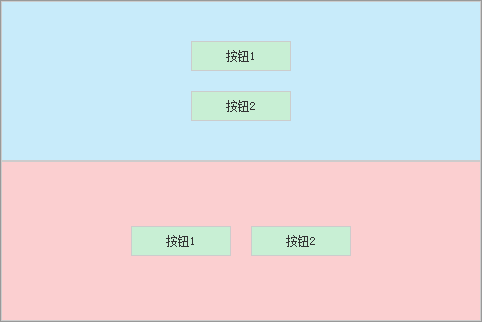
<VerticalLayout childalign="center">
<!-- 子控件垂直排列 -->
<!-- 垂直向通过 Control 控件,均分剩余高度实现垂直居中 -->
<!-- 水平向可通过 childalign 属性设置对齐,支持: left、center、right,此时子控件的左右外边距无效 -->
<Control />
<Button width="100" height="30" text="按钮1" />
<Button width="100" height="30" text="按钮2" />
<Control />
</VerticalLayout>
<HorizontalLayout childvalign="vcenter">
<!-- 子控件水平排列 -->
<!-- 水平向通过 Control 控件,均分剩余宽度实现水平居中 -->
<!-- 垂直向可通过 childvalign 属性设置对齐,支持: top、vcenter、bottom,此时子控件的上下外边距无效 -->
<Control /><Button width="100" height="30" text="按钮1" /><Button width="100" height="30" text="按钮2" /><Control />
</HorizontalLayout>
3、窗口控制
<Window size="662,442" caption="0,0,0,32" sizebox="0,0,0,0" defaultfontcolor="#FF333333"></Window>
size:窗口大小,分别对应长宽。
caption:标题栏矩形区域,即可通过拖拽移动窗口的区域,分别是左、上、右、下的坐标值,非距离。
sizebox:可拖拽改变窗口大小的边框宽度,也是分别对应左、上、右、下。
mininfo/maxinfo:拖拽时的最小/最大尺寸,当sizebox不为0时才能有用。不设置时是零尺寸/桌面可视区大小。
defaultfontcolor:默认字体颜色。
注意:
不支持边框和内外边距属性,因为Window不能当作控件,而是只有设置功能的XML标签。
它仅支持一个子控件(即使写了多个,也会忽略后面的)。
第一个子控件即 m_pRoot(根控件),根控件的 padding 属性会被忽略。
通常第一个子控件是VerticalLayout,因为需要将窗口分成标题栏和内容区等上下结构。
4、其他常用属性
文字、内容对齐方式:align="left"、align="center"、align="right"
文字颜色:textcolor="#FF000000"
鼠标提示:tooltip="添加账号"
背景色:
bkcolor="#FF000000"(黑)、bkcolor="#FFffffff"(白)、bkcolor="#FFcccccc"(灰)
bkcolor="#FFff0000"(红)、bkcolor="#FF008000"(绿)、bkcolor="#FF0000ff"(蓝)
bkcolor="#FFfbcfd0"(浅红)、bkcolor="#FFc8efd4"(浅绿)、bkcolor="#FFc8ebfa"(浅蓝)
背景图片:
bkimage="file='logo.png'"
bkimage="file='logo.png' source='0,0,50,30'"
bkimage="color='#FF008000'"
(当使用图片时,图片将压缩/拉伸到控件尺寸,如果通过source指定了区域,也是将指定区域进行压缩/拉伸到控件尺寸)
(source分别对应:左上角X坐标,左上角Y坐标,右下角X坐标,右下角Y坐标)
5、文本标签:<Label name="emptyTip" height="60" text="暂无数据" align="center" textcolor="#FFcccccc" />
6、文本输入框
<Edit
name="edit"
width="200"
height="30"
textpadding="8,0,8,0"
bkcolor="#FFffffff"
bordersize="1"
bordercolor="#FFeeeeee"
borderround="5,5,5,5"
maxchar="20"
/>
<RichEdit
name="richEdit"
bkcolor="#FFffffff"
inset="3,3,3,3"
bordersize="1"
bordercolor="#FFe3e3e3"
borderround="5,5,5,5"
vscrollbar="true"
autovscroll="true"
vscrollbarstyle="width="10" showbutton1="false" showbutton2="false" thumbcolor="#FFcccccc""
rich="false"
wordwrap="true"
textpadding="5,5,5,5"
/>
7、带图标按钮
<Button
name="btnSave"
width="100"
height="30"
bordersize="1"
bordercolor="#FFeeeeee"
borderround="5,5,5,5"
normalimage="file='btn_bg.png' source='0,0,100,30'"
hotimage="file='btn_bg.png' source='0,30,100,60'"
pushedimage="file='btn_bg.png' source='0,60,100,90'"
align="center"
showhtml="true"
text="{v center}{i btnSave.png 1 0}{x 6}保存"/>
8、带滚动条列表
<List
name="list"
itemheight="50"
bordersize="1"
bordercolor="#FFeeeeee"
inset="3,3,3,3"
vscrollbar="true"
vscrollbarstyle="width="10" showbutton1="false" showbutton2="false" thumbcolor="#FFcccccc""
header="hidden" >
<ListContainerElement>
<HorizontalLayout>
<Label width="60" text="1" align="center" />
<Label text="这是列表标题一" align="left" />
</HorizontalLayout>
</ListContainerElement>
<ListContainerElement>
<HorizontalLayout>
<Label width="60" text="2" align="center" />
<Label text="这是列表标题二" align="left" />
</HorizontalLayout>
</ListContainerElement>
<ListContainerElement>
<HorizontalLayout>
<Label width="60" text="3" align="center" />
<Label text="这是列表标题三" align="left" />
</HorizontalLayout>
</ListContainerElement>
<ListContainerElement>
<HorizontalLayout>
<Label width="60" text="4" align="center" />
<Label text="这是列表标题四" align="left" />
</HorizontalLayout>
</ListContainerElement>
<ListContainerElement>
<HorizontalLayout>
<Label width="60" text="5" align="center" />
<Label text="这是列表标题五" align="left" />
</HorizontalLayout>
</ListContainerElement>
<ListContainerElement>
<HorizontalLayout>
<Label width="60" text="6" align="center" />
<Label text="这是列表标题六" align="left" />
</HorizontalLayout>
</ListContainerElement>
</List>