
自学HarmonyOS应用开发(71)- 优化目录间迁移体验

通过前面几篇文章,虽然我们实现了在各级目录之间进行切换的功能,但还是有一些不够方便的地方。例如:
返回上级目录之前必须首先当前回到目录的最顶端
退回上级目录之后,总是回到该目录的最顶端。这对于希望继续浏览目录内容的用户很不友好
针对这两个问题,我们采取如下对策:
通过画面顶端的操作区实现返回上级目录功能
每次进入下级目录时记录当前表示位置,从下级目录返回时恢复这个表示位置。
修改后的动作视频如下:
返回上级目录按钮
画面最上面操作区的布局文件中和返回上级目录按钮相关的部分如下:
<DirectionalLayoutxmlns:ohos="http://schemas.huawei.com/res/ohos"ohos:id="$+id:app_bar"ohos:height="match_content"ohos:width="match_parent"ohos:background_element="$color:title_layout_background_color"ohos:orientation="horizontal"><DirectionalLayoutohos:id="$+id:title_layout"ohos:height="56vp"ohos:width="match_content"ohos:orientation="horizontal"ohos:weight="1"><Imageohos:id="$+id:left_arrow"ohos:height="24vp"ohos:width="24vp"ohos:layout_alignment="center"ohos:start_margin="24vp"/>
当MainAbilitySlice启动时,为该按钮指定图像文件和按下处理:
public void onStart(Intent intent) {setUIContent(ResourceTable.Layout_browser_ability);Image leftArrow = (Image) findComponentById(ResourceTable.Id_left_arrow);leftArrow.setPixelMap(ResourceTable.Media_return_gray50);leftArrow.setClickedListener(new Component.ClickedListener() {public void onClick(Component component) {FileListContainer listContainer = (FileListContainer) findComponentById(ResourceTable.Id_list_container);listContainer.backToParent();}});initListContainer();}
最初表示的目录是根目录,因此对应的图像文件是灰色按钮。接下来我们可以在FileListContainer的当前目录发生变化时决定返回上级目录按钮的状态:
private void initListContainer() {FileListContainer listContainer = (FileListContainer) findComponentById(ResourceTable.Id_list_container);listContainer.setSelectedListener(listener);listContainer.setDirChangeListener(new BrowserItem.DirChangeListener() {public void dirChanged(File dir) {String parent = dir.getParent();Image leftArrow = (Image) findComponentById(ResourceTable.Id_left_arrow);if(parent != null){leftArrow.setPixelMap(ResourceTable.Media_return_black50);}else{leftArrow.setPixelMap(ResourceTable.Media_return_gray50);}}});}
记录和恢复进入下级目录时的表示位置
首先准备一个用于管理每次进入下级目录时表示位置的entryPointList,当FileListContainer的当前目录发生变化时,如果新目录比原目录长则判断为进入下级目录,这时保存进入位置;如果新目录比原目录短,则判断为返回上级目录,这时回复进入位置。具体代码如下:
void changeDir(File dir){int firstVisible = getItemPosByVisibleIndex(0);setSelectedItemIndex(-1);sampleItemProvider.setCurrentDir(dir);setItemProvider(sampleItemProvider);if(currentDir == null|| dir.getAbsolutePath().length() > currentDir.getAbsolutePath().length()){entryPointList.add(firstVisible);}else{int listSize = entryPointList.size();if(listSize > 0){int last = entryPointList.remove(listSize - 1);scrollTo(last);}}currentDir = dir;if(dirChangeListener != null){dirChangeListener.dirChanged(dir);}}
参考资料
ListContainer
https://developer.harmonyos.com/cn/docs/documentation/doc-guides/ui-java-component-listcontainer-0000001060007847
参考代码
完整代码可以从以下链接下载:
https://github.com/xueweiguo/Harmony/tree/master/FileBrowser
作者著作介绍
《实战Python设计模式》是作者去年3月份出版的技术书籍,该书利用Python 的标准GUI 工具包tkinter,通过可执行的示例对23 个设计模式逐个进行说明。这样一方面可以使读者了解真实的软件开发工作中每个设计模式的运用场景和想要解决的问题;另一方面通过对这些问题的解决过程进行说明,让读者明白在编写代码时如何判断使用设计模式的利弊,并合理运用设计模式。
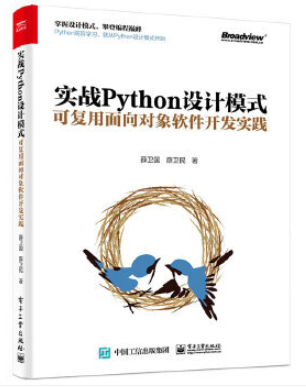
对设计模式感兴趣而且希望随学随用的读者通过本书可以快速跨越从理解到运用的门槛;希望学习Python GUI 编程的读者可以将本书中的示例作为设计和开发的参考;使用Python 语言进行图像分析、数据处理工作的读者可以直接以本书中的示例为基础,迅速构建自己的系统架构。
觉得本文有帮助?请分享给更多人。
关注微信公众号【面向对象思考】轻松学习每一天!
面向对象开发,面向对象思考!