
一篇文章带你了解SVG 剪切路径
回复“前端”即可获赠前端相关学习资料
SVG剪切路径(也称为SVG剪切)用于根据特定路径剪切SVG形状。路径内部的形状部分可见,外部的部分不可见。
一、剪辑路径
这是一个简单的剪辑路径。
SVG代码:
<html><head><meta charset="utf-8"><title>项目title>head><body style="background-color: aqua;"><svg width="200" height="100" style="border: 1px solid #cccccc;"><defs><clippath id="clipPath"><rect x="15" y="15" width="40" height="40">rect>clippath>defs><circle cx="25" cy="25" r="20" style="fill: #ff0000s; clip-path: url(#clipPath); ">circle>svg><svg width="200" height="100" style="border: 1px solid #cccccc;"><defs><clippath id="clipPath2"><rect x="15" y="15" width="40" height="40">rect>clippath>defs><circle cx="25" cy="25" r="20" style="fill: #ff0000; clip-path: url(#clipPath2); ">circle><rect x="15" y="15" width="40" height="40" style="stroke: #000000; fill:none;">rect>svg>body>html>
这个实SVG代码定义了一个形状类似于矩形(
运行效果:
左下方是生成的图像。右边是同一图像,但也绘制了剪切路径。

注
在剪切路径内只有圆的部分是可见的。其余部分将被剪切。
二、高级剪切路径
可以使用矩形以外的其他形状作为剪切路径。可以使用圆形,椭圆形,多边形或自定义路径。任何SVG形状都可以用作剪切路径。
这是将
SVG代码:
<svg width="200" height="100" style="border: 1px solid #cccccc;"><rect x="5" y="5" width="190" height="90" style="stroke: none; fill:#00ff00; ">rect>svg><svg width="200" height="100" style="border: 1px solid #cccccc;"><defs><clippath id="clipPath3"><path d="M10,10 q60,60 100,0 q50,50 50,50 l40,0 l-40,40 l-100,-20">path>clippath>defs><rect x="5" y="5" width="190" height="90" style="stroke: none; fill:#00ff00; clip-path: url(#clipPath3);">rect>svg>
运行效果:
这是生成的图像-在右侧。左侧显示没有剪切路径的图像。
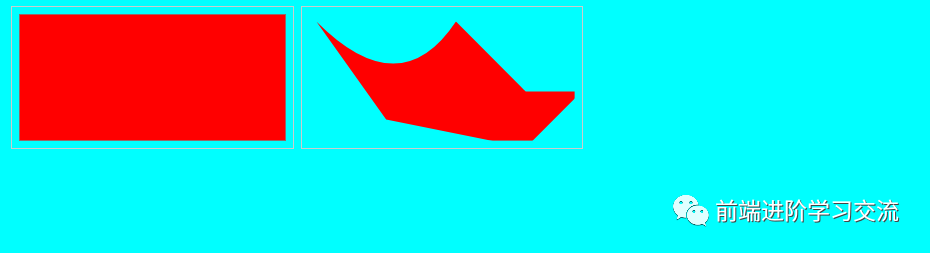
1. 在组上剪裁路径
可以在一组SVG形状上使用剪切路径,而不是分别在每个形状上使用。只需将形状放在
示例SVG代码
<svg width="200" height="100" style="border: 1px solid #cccccc;"><rect x="5" y="5" width="190" height="90" style="stroke: none; fill:#00ff00; ">rect><circle cx="20" cy="20" r="20" style="stroke: none; fill: #ff0000;">circle>svg><svg width="200" height="100" style="border: 1px solid #cccccc;"><defs><clippath id="clipPath4"><rect x="10" y="20" width="100" height="20">rect>clippath>defs><g style="clip-path: url(#clipPath4);"><rect x="5" y="5" width="190" height="90" style="stroke: none; fill:#00ff00;">rect><circle cx="20" cy="20" r="20" style="stroke: none; fill: #ff0000;">circle>g>svg>
运行效果:
下面是没有剪切路径的图像,然后是应用剪切路径的图像:
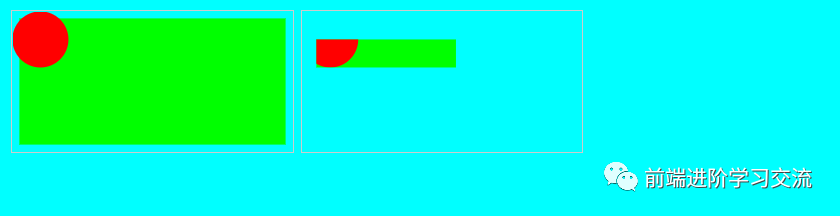
2. 文本作为剪切路径
也可以将文本用作剪切路径。这是一个实SVG代码:
SVG代码:
<svg width="200" height="100" style="border: 1px solid #cccccc;"><rect x="5" y="5" width="190" height="90" style="stroke: none; fill:#00ff00; ">rect><circle cx="20" cy="20" r="20" style="stroke: none; fill: #ff0000;">circle>svg><svg width="200" height="100" style="border: 1px solid #cccccc;"><defs><clippath id="clipPath5"><text x="10" y="20" style="font-size: 20px; ">This is a texttext>clippath>defs><g style="clip-path: url(#clipPath5);"><rect x="5" y="5" width="190" height="90" style="stroke: none; fill:#00ff00;">rect><circle cx="20" cy="20" r="20" style="stroke: none; fill: #ff0000;">circle>g>svg>
这是带有和不带有剪切路径的结果图像:
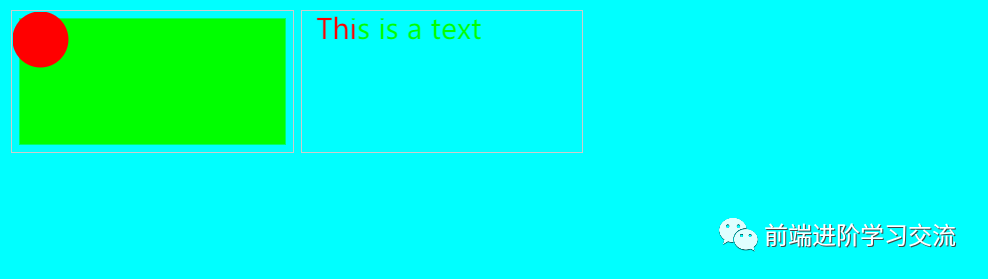
正如看到的,现在只显示文本内部形状的一部分。
三、总结
本文基于SVG基础,介绍了如何剪切路径,可以根据特定路径剪切SVG形状。还介绍了高级的剪切路径(在组上剪裁路径、文本作为剪切路径)通过项目的分析,案例的效果图的展示,能够让读者更好的理解SVG路径剪切的用法。
欢迎大家积极尝试,有时候看到别人实现起来很简单,但是到自己动手实现的时候,总会有各种各样的问题,切勿眼高手低,勤动手,才可以理解的更加深刻。
希望能够帮助你更好的学习。
------------------- End -------------------
往期精彩文章推荐:

欢迎大家点赞,留言,转发,转载,感谢大家的相伴与支持
想加入前端学习群请在后台回复【入群】
万水千山总是情,点个【在看】行不行